Best Pomodoro Chrome Extensions to Keep Your Focus in the Browser
13 Aug 2026 • 8 min read • posted by Yevhen Codes
Your browser is where you work — and where your work goes to die. The same window that holds your project doc also holds your inbox, three chat tabs, and the forty-five minutes of YouTube you never planned to watch. A Pomodoro Chrome extension is the smallest thing that reliably fixes this, because it fights the distraction where the distraction lives.

The cost of switching is bigger than it feels. Research by Gloria Mark and colleagues at the University of California, Irvine found that once office workers were interrupted, they didn't return to the original task for an average of 25 minutes and 26 seconds, having worked through more than two other tasks in between. The Pomodoro Technique, Francesco Cirillo's method of working in 25-minute focused intervals with short breaks, is one of the most reliable ways to protect yourself from that cost. And if the browser is where your distractions live, the browser is where your timer should live too.
This article compares six Pomodoro Chrome extensions: what each does well, who it suits, and how to choose between a timer that politely reminds you and one that actually keeps you honest.
Quick Comparison of the Best Pomodoro Chrome Extensions
| Extension | Best for | Blocks websites | Account required | Price |
|---|---|---|---|---|
| Yellow Tomato | Best overall | Yes | No | Free |
| Forest | Gamified focus | Yes | No | Free (mobile app paid) |
| Tomato Clock | Minimalist timer | No | No | Free |
| Focus To-Do | Task management | No | Optional (for sync) | Free, paid tier |
| Otto | Scheduled blocking | Yes | No | Free |
| Momentum | New-tab dashboard | No | Yes | Timer requires Plus |
1. Yellow Tomato — Best Overall Pomodoro Timer and Blocker
Full disclosure: Yellow Tomato is our extension. We built it because most browser timers share the same flaw: they tell you the focus session started, then do nothing when you drift to Reddit two minutes later.
Yellow Tomato closes that gap. When a focus session starts, the sites on your blocklist become unreachable until the break. No willpower negotiation, no "just one quick look." The timer and the blocker are one mechanism, which is the point: the tool that measures your focus is the same tool that defends it.
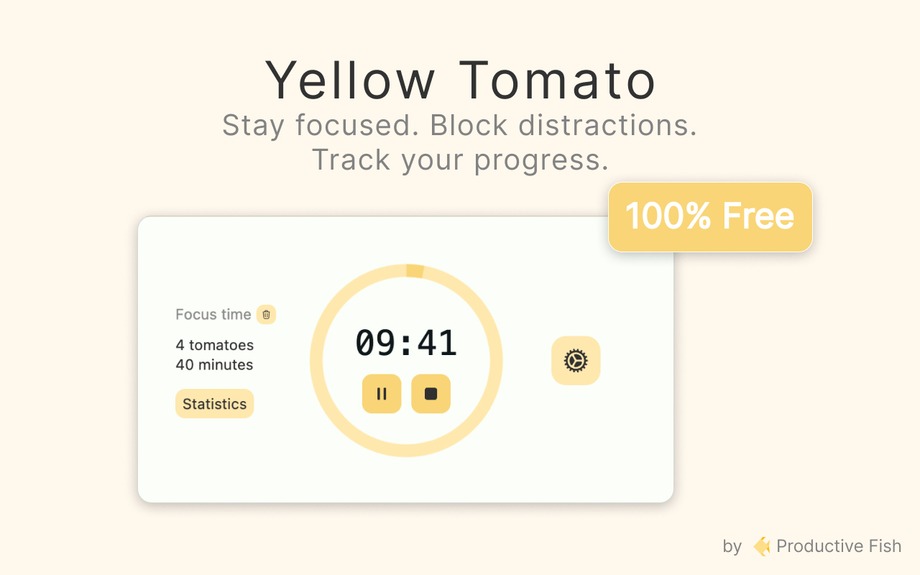
Beyond the core loop, it keeps things deliberately small. There is a simple task list so you can name what each pomodoro is for. There is a daily streak that forgives an occasional missed day instead of punishing you back to zero. Stats show honest numbers (sessions completed, focus time) without dressing them up as a productivity score.
Two things it refuses to do are worth knowing before you install. It never asks you to create an account, and it never sends your data anywhere: everything stays in your browser. The trade-off is real: there is no cross-device sync, by design. If you need your stats to follow you between machines, look at Focus To-Do below. Yellow Tomato is free, with no paid tier, and localized in English, Spanish, and Brazilian Portuguese.
2. Forest — Best for Gamified Focus
Forest turns each focus session into a virtual tree. Stay on task and it grows; wander onto a blocklisted site and it dies. That sounds silly until you feel it work — the mechanism is loss aversion, and watching a tree you grew for 22 minutes wither in the last three is surprisingly persuasive.

The Chrome extension is free and pairs with Forest's mobile app (a one-time purchase), which syncs your forest across devices and lets the same session cover both your browser and your phone. Over weeks, your completed sessions accumulate into a small forest, a visual record of focus that a bar chart can't match emotionally.
The honest caveat: gamification splits people. If a dying cartoon tree motivates you, Forest is excellent. If it feels like a gimmick standing between you and a simple countdown, you will disable it within a week. You already know which camp you're in.
3. Tomato Clock — Best Minimalist Timer
Tomato Clock is the pick for people who want a timer and nothing else. Click the toolbar icon, start a 25-minute tomato, and it counts down on the icon badge; when the session ends it chimes and moves into a break. You can change the work and break lengths, choose your own notification sound, turn on a dark theme, and glance at simple stats on how many tomatoes you finished. No account, no setup screen to wade through.
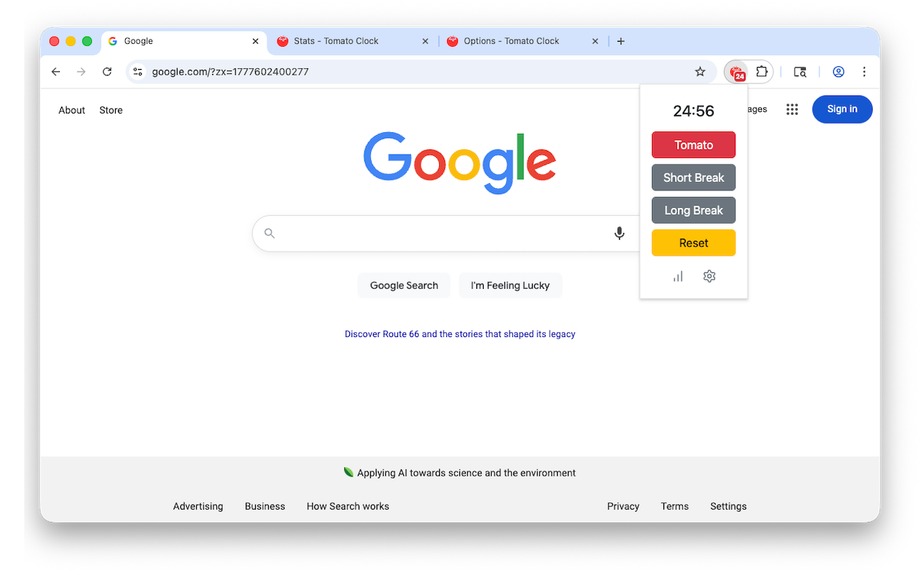
What it doesn't do is block anything. Tomato Clock notifies; it never enforces. If you respect a bell, that restraint is the appeal: it stays out of your way and adds nothing you have to manage. If you hear the chime and keep scrolling anyway, you'll want one of the enforcing tools above instead. It plays a chime and nothing more, so if background audio is part of how you concentrate, run it alongside a playlist — our guide to studying with music covers what the research actually supports.
4. Focus To-Do — Best for Task Management
Focus To-Do bolts a Pomodoro timer onto a full task manager: projects, subtasks, due dates, recurring tasks, and time reports showing where your pomodoros actually went. Each timer session attaches to a specific task, so at the end of the week you can see that the client proposal took nine pomodoros and email ate six.
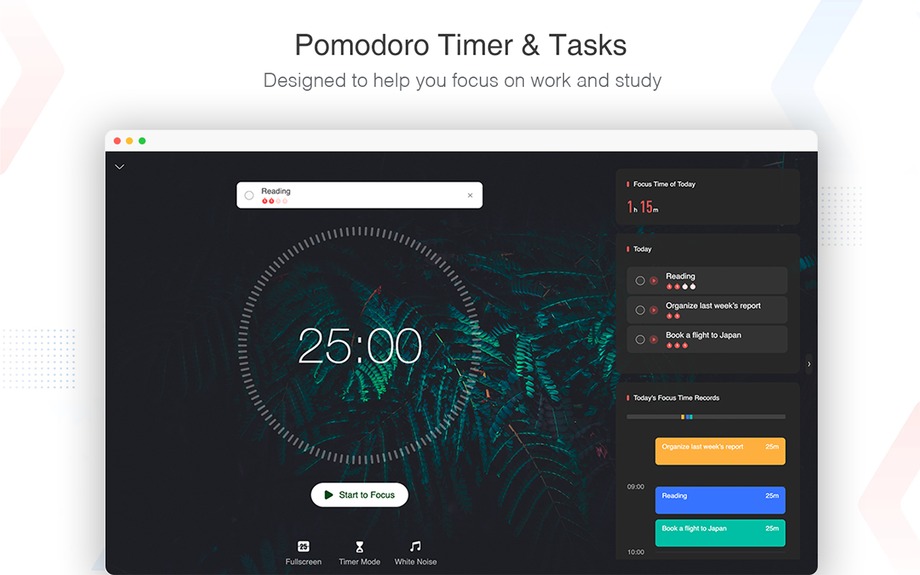
It is the heaviest tool on this list, and that cuts both ways. If you already track tasks in a dedicated app, running a second system inside your timer creates duplicate bookkeeping. Pick one source of truth. But if you want timer and to-do list in a single tool, this is the strongest combination available in a browser. A free account unlocks sync across Chrome, Windows, macOS, iOS, and Android; a paid tier adds reports and unlimited projects.
5. Otto — Best for Scheduled Blocking
Otto is a Pomodoro timer and blocker that keeps working when the timer isn't running. During a session it blocks everything on your blocklist, which puts it in the enforcing camp with Yellow Tomato and Forest. Outside sessions it runs as a standalone blocker on a schedule: block social media every weekday from 9 to 6, whether or not a pomodoro is going.
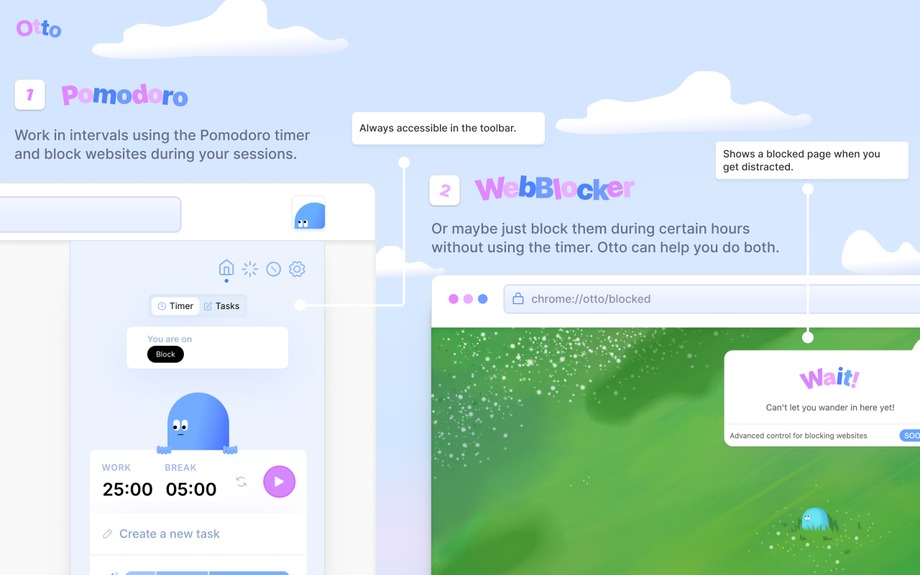
Two details make it the most precise blocker here. It can block part of a site rather than all of it, so you can kill the YouTube home feed and keep the video your colleague sent you. And it lets you unblock temporarily when you genuinely need a blocked site, instead of forcing you to disable the extension and forget to turn it back on. Otto is free. Take it if your distraction problem is bigger than your focus sessions; if you only need blocking while the timer runs, Yellow Tomato covers that in one tool.
6. Momentum — Best New-Tab Dashboard
Momentum replaces your new-tab page with a scenic photo, a greeting, and one question: what is your main focus today? Every time you open a tab to wander, your own stated priority looks back at you. That gentle confrontation is Momentum's real mechanism.
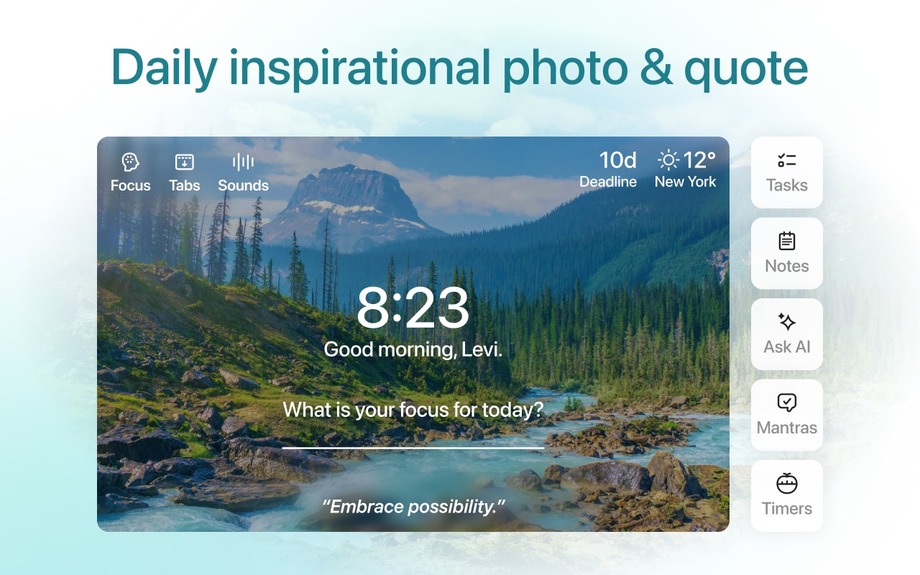
The Pomodoro timer itself lives in Momentum Plus, the paid tier, alongside a task list and site blocker. As a free product it's a mindfulness nudge, not a timer. It earns its place here for one kind of user: someone who wants their entire new-tab experience rebuilt around intention, and who opens enough new tabs for that to matter. For everyone else, a dedicated timer does the job without the subscription.
How to Choose a Pomodoro Chrome Extension
The biggest decision isn't features. It's this: do you want a timer that notifies or a timer that enforces?
A notifying timer (Tomato Clock, Focus To-Do) counts down and chimes. It assumes that when the bell rings, you'll behave. An enforcing timer (Yellow Tomato, Forest, Otto) makes distracting sites unreachable during focus sessions. Mark's interruption research explains why this distinction matters more than any other feature: that 25-minute detour is paid per interruption, so a tool that prevents the interruption beats a tool that merely records the session. If you have ever ignored your own timer to finish "one more scroll," you need enforcement, not reminders. A dedicated website blocker can add enforcement to any timer, but a single tool that does both means one less thing to configure.
Second lens: privacy and accounts. For a 25-minute countdown, some extensions want an email address, a synced profile, and a subscription. Decide whether cross-device sync is worth that to you. If your focus work happens on one machine, a local-only tool with no account is simpler and keeps your work patterns out of someone's database.
Third lens: temperament. Gamification (Forest) works through emotional stakes; minimalism (Tomato Clock, Yellow Tomato) works by staying out of your way. Neither is superior, but mismatching costs you. A gimmick you find annoying gets uninstalled, and an invisible tool you need stakes for gets ignored.
One practical check before you install anything: open the Chrome Web Store listing and look at when it was last updated and how recent the reviews are. Browser extensions get abandoned and delisted more often than apps do, and a timer that quietly stops working after a Chrome update is worse than no timer at all. This matters more than usual here, because a blocker needs permission to read and change the sites you visit. Plenty of roundups still recommend extensions that are no longer in the store.
Whichever you pick, remember the extension is scaffolding for a skill, not a replacement for it. The deeper work of improving your focus (sleep, single-tasking, managing inputs) determines how much any timer can give you.
Common Mistakes with Browser Pomodoro Timers
Treating the chime as optional
If you regularly work through breaks or ignore the session start, the timer becomes background noise within a week. The technique's power is the rhythm, and rhythm only forms if you obey the bell — both bells. Take the break even when you're in flow; especially then.
Blocking nothing, or everything
An empty blocklist means the enforcement feature you installed the extension for never fires. A blocklist with forty sites, including ones you need for work, guarantees you'll disable it by Thursday. Start with your three worst offenders and expand only when a new site proves itself a problem.
Fiddling with settings instead of working
Testing whether 25/5 or 50/10 suits you better is legitimate. Once. Rebuilding your intervals, sounds, and themes every few days is procrastination wearing a productivity costume. Set it, run it for two weeks, then evaluate.
Counting pomodoros instead of finishing work
Eight completed sessions feels productive, but sessions are a means. Attach each pomodoro to a named task before you start it. If your tool has a task list, use it; if your day ends with many tomatoes and no finished work, the timer is measuring the wrong thing.
Expecting the extension to fix your phone
A Chrome extension governs Chrome. If your distraction lives on your phone, the browser timer will run flawlessly while you scroll Instagram on the couch. For phone-first distraction, pair the extension with one of the best Pomodoro apps on mobile. Forest is the easiest to run on both at once.
Pick One Timer and Run a One-Week Test
Don't install three of these tonight. Pick the one that matched your failure mode: enforcement if you ignore chimes, Forest if you need stakes, Focus To-Do if your tasks are scattered. Commit to it for five working days.
If you want our honest default: start with Yellow Tomato. It blocks what needs blocking, asks for nothing in return, and takes under a minute to set up. Add your three worst distraction sites to the blocklist, write down one task, and start the first 25 minutes. The tree, the schedule, and the dashboard will still be there next week if it turns out you need them.
Frequently Asked Questions
What is the best Pomodoro Chrome extension?
Yellow Tomato is the best Pomodoro Chrome extension for most people because it combines the timer with automatic website blocking, requires no account, and is completely free. The best choice for you depends on your failure mode: Forest suits people motivated by gamification, Tomato Clock suits those who want a bare timer, and Focus To-Do suits those who want tasks and timing in one tool.
Can a Pomodoro Chrome extension block websites?
Yes — but only some of them do. Yellow Tomato, Forest, and Otto block distracting sites automatically during focus sessions; Tomato Clock and Focus To-Do's extension only run the timer and notify you. If you tend to ignore your own timer, choose an extension with built-in blocking or pair a plain timer with a separate website blocker.
Do Pomodoro extensions need an account or send my data anywhere?
Not all of them. Yellow Tomato and Tomato Clock work with no account and keep all data locally in your browser. Momentum requires sign-in, and Focus To-Do needs an account for cross-device sync. If privacy matters to you, check whether an extension works offline and where it stores your stats before installing.
Should I use a Chrome extension or a Pomodoro app?
Use a Chrome extension if your work and your distractions both live in the browser — it can see and block the sites that derail you. Use a desktop or mobile app if you work outside the browser or your main distraction is your phone. Many people run both; our roundup of the best Pomodoro apps covers the desktop and mobile side.
Are Pomodoro Chrome extensions free?
Most are free for core timing. Yellow Tomato, Tomato Clock, and Otto are entirely free; Forest's extension is free but its syncing mobile app is a one-time purchase; Focus To-Do uses a freemium model; Momentum locks its timer behind the paid Plus plan. You should never need to pay just to run 25-minute focus sessions in your browser.